Distribution List Management
Nowadays, a lot of websites offer visitors the opportunity to sign up to company public distribution lists. However, along with public distribution lists, a company often needs to organize additional non-public lists, certain company employees being responsible for their management.
Both technical and organizational problems may occur with creating such lists — for example, to create such a list, a hidden section needs to be created on the company web-site, which will contain the information as to how to subscribe/unsubscribe to the list; moreover, the list should be created by the site administrator who should give the responsible person the relevant access to manage it and send messages to subscribers.
Our company offers an on-the-spot solution for the problem, which requires almost no managerial and technical resources.
Assume that a sales manager needs to offer the dealers of a beta-version of a new product for examination. There exist the following conditions:
- it is necessary to select the companies that have shown themselves as reliable and loyal partners in the dealer list (a special list needs to be created)
- the source dealer list is stored as a contact list in Microsoft® Outlook®, or it is available as a contact list from Microsoft Outlook
- prior to release of the final product version, several beta-version will be offered (the mailing won't occur all at once, so the recipients need to be given the possibility to unsubscribe)
The solution includes three software products coming as Microsoft Outlook add-ins:
- Subscription Manager. This add-in processes incoming messages and selects those containing subscribe/unsubscribe requests. You have created the list named ‘NewProductTest’ in the contact folder and allowed users to unsubscribe from it. Then, having received a message with the subject "Unsubscribe newProductTest", the Subscription Manager will remove the sender's address from the list.
- The auxiliary program Send Personally. If a distribution list name is entered in the TO: field of a message, Outlook will put all the addresses from that list into that field while sending thereby sending the same message to all the subscribers. Send Personally offers an alternative sending method — a separate message copy is created for each recipient, and where only his/her recipient is in the TO: field. Just click "Send Personally" instead of "Send", and that’s all!
- The auxiliary program Actual Contacts for Outlook. It checks email addresses in contacts and distribution lists for validity/existence, without sending any messages to the addresses being checked. Keeping contacts up-to-date is an important and difficult task, and our Contacts Verifier is capable of making that job much easier.
So, to solve our example problem, the following steps should be performed:
- Create the distribution list in the contact folder.
- Install the add-in Subscription Manager, and allow users to unsubscribe, i.e. to have their addresses removed from the list by sending you a message with a command. You can also allow subscribing to the list, which may be necessary, for example, if a dealer decides to add addresses of several of his/her employees to the list.
- You can use Send Personally if you want each recipient of the message to see only his own name and address in the TO field.
- If the list is quite long, and every subscriber is of value, you can install Contacts Verifier and check the addresses’ status from time to time.
Besides the basic functions, the software products included in the solution have some additional capabilities. For example, you can insert macros into a message body, and when sending through the Send Personally function they will be replaced with data from the contact, as shown in the picture below.
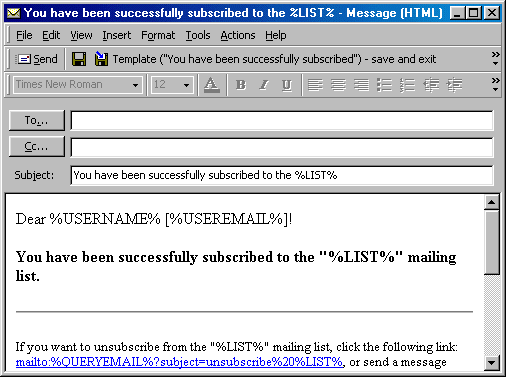
The add-in Send Personally offers additional capabilities for creating a recipient list. Assume you have two lists named emailsList and exclusionList, and you want to send a message to all addresses from the first list, except those contained in the second list. To do that, you can simply enter the name of the second list into the TO: field with a minus sign before it (e.g. -exclusionList), and none of the users in that list will receive a copy of the message.
The solution offered needs almost no configuring, so users of any skill level can install and use it. System administrator's help may only be needed to set up the Contacts Verifier, if the user's computer accesses the Internet through a firewall. This solution is viable both in networks using POP3/SMTP/IMAP mail servers, and in networks built on Microsoft® Exchange server. |
|







 Support area
