A proven mass email add-in for Outlook that not only provides true bulk mailouts in Outlook, but also enables the high-level message personalization. Seamless and easy way to send individual emails to multiple recipients using Microsoft Outlook!
Top reasons to perform mass mailing in Outlook with Send Personally
True Outlook mass email tool
Send hundreds of messages as easy as one email!
Create the Outlook message as you usually would, apply the distribution list and just click `Send Personally` button instead of native `Send` one.
Personalized emails in Outlook
Make your mailouts really personalized!
Perform bulk mailing in Outlook and provide a personal subject and greeting for each recipient: name; surname or email address
Hiding recipients in Outlook emails
Just one recipient in `To` field of email!
Even if you are sending a message to an entire list of recipients, only one contact will be displayed in the `To` field.
Why mass mailing in Outlook with the Send Personally add-in guarantees the best results
Don’t let Outlook modify your HTML emails
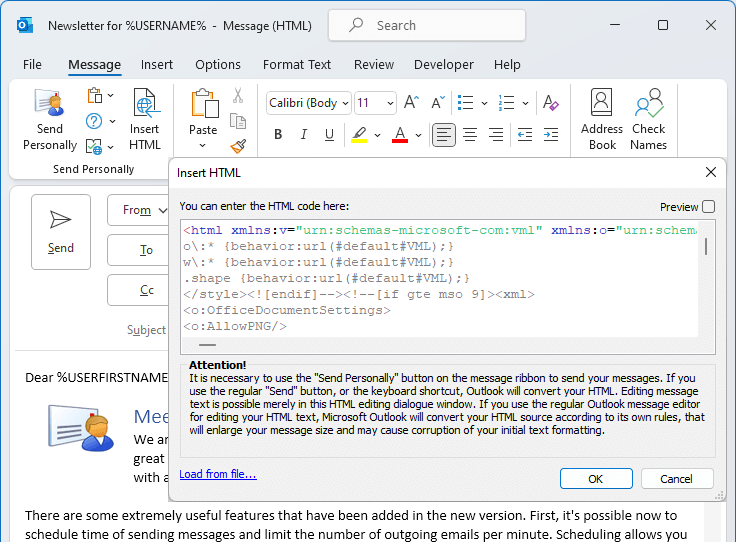
Insert HTML code (created in a separate application) into the body of an email and Send Personally will execute sending without allowing Outlook to reformat or modify your HTML in any way. Your email will be properly displayed in any email client or on any device on the recipient’s side. Find detailed information in the related article.
Maintain security when issuing mailouts
Don’t share all email addresses and contact information from your distribution list to all your recipients by displaying these details in email header. Recipients will not get the details of your distribution list whether it contains private or commercial data.
Protection from 'reply-to-all' mistakes
Imagine you have sent email to your distribution list using the built-in Send option in Outlook. One recipient replies using the ‘Reply all’ button… and the reply is delivered to all the recipients in the distribution list. Protection from such incidents – sending an individual message to each contact – is provided using the Send Personally add-in.
Enrich your email messages with personal data
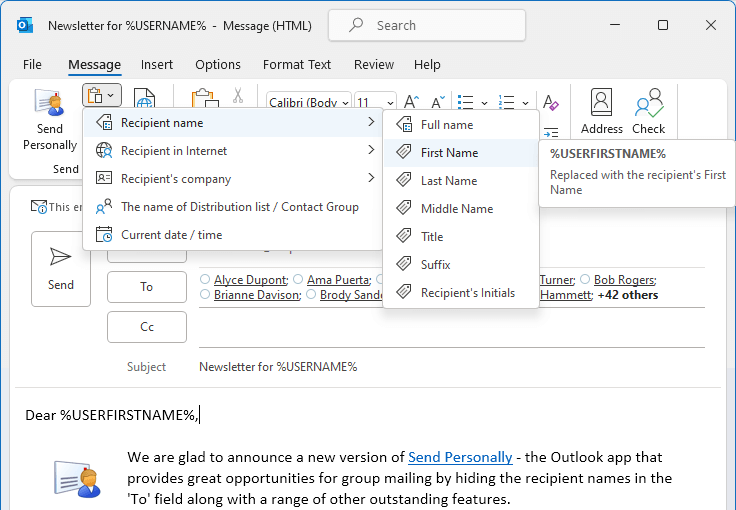
You can use macros (special expressions automatically replaced by the recipient's personal data when sending a message) in the message text. Using macros, you can insert the recipient's name, e-mail address, as well as the name of the Outlook distribution list containing his/her address into a message at the time of sending.
Reduce size of email header
If a message is sent to hundreds of recipients, its heading size might be several times larger than the size of the message text and the attachments together. Send Personally generates individual message to each recipient from the distribution list, so the mail header will be OK.
Your mailing won’t end up in junk
When you perform mass mailing in Outlook, anti-spam tools on recipient side may identify your mail as spam owing to the numerous recipients in the email header. You can significantly decrease the chance of having your message junked by mailing with Send Personally: there is only one address in ‘To’ field.
Take a look inside Send Personally for Outlook
You only need one button to start working!
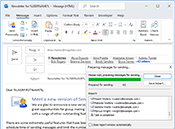
The only thing you need to know about how to use this product is the "Send Personally" button located in Outlook ribbon. Click this button instead of the regular "Send" to issue your mailout with all the features of Send Personally.
HTML bulk emails in Outlook
Send Personally offers you the way send HTML bulk emails and leave messages body unchanged during the sending process. This means that you can be sure that the recipient will see message exactly as you designed it.
Send Outlook emails with true personalization!
Macros presented by Send Personally allow you to enrich your email message and subject line with personal greetings to your addressee. Use these macros to give your messages a real, personal touch.
Send personalized Meeting and Task Requests!
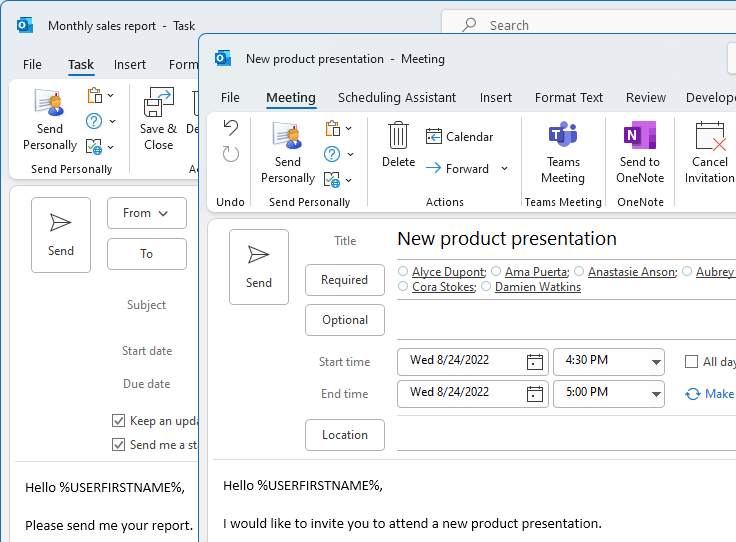
The plugin features are available also for Meeting and Task Requests. This also allows hiding recipients names and information from others and can be used as an alternative to a missing BCC feature.
Fixed: processing multiple-recipient invitation updates in Calendar items and Tasks
Version 3.2.1.15 - released on September 22, 2023
Fixed: an issue with resolving recipients from multi-level included Contacts Groups
Version 3.2.1.14 - released on May 4, 2023
Fixed: Warnings about multiple (B)CC-recipients are optimized
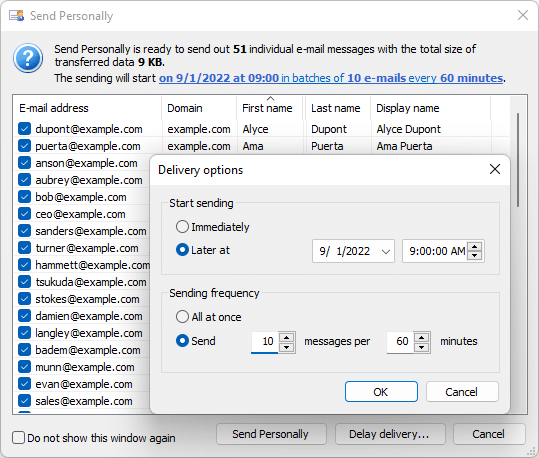
New: the delay setting is extended with the selection of exact sending time and date
Version 3.2 - released on October 7, 2022
New macros are added: recipient`s title, suffix, initials, as well as web page, company name and job details.
Add-in interface changes: macros are merged into groups and displayed with Contact field names.
Several minor issues with conversion to HTML format are fixed.
Version 3.1 - released on August 24, 2022
Sending messages with digital signature and encryption is supported.
New macro: %DATETIME% to insert a custom format timestamp.
Fixed: HTML format support for personalized meeting and task requests.
Compatibility with the recent updates and builds of Outlook 2021 and Outlook 365 for Windows.
Version 3.0.0.8 - released on December 21, 2021
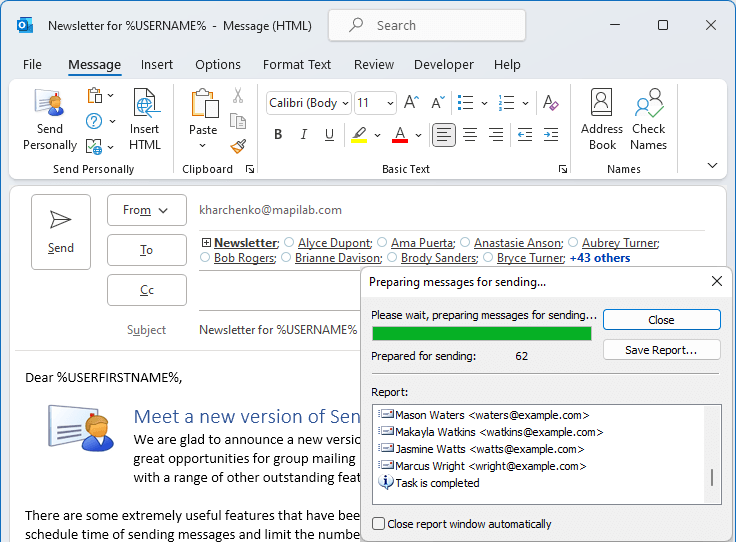
New: a possibility to view the recipient list, check data correctness and exclude recipients from the mailing before sending messages is added.
New: the setting for scheduling time of sending messages and limit the number of outgoing messages per minute.
New: adding macros into URLs is now supported in the pre-designed HTML form used as message body (the "Insert HTML" add-in option).
New: a possibility to use Send Personally in the "Inline reply mode" is added.
Updated: new algorithm of the recipient name selection for the %FirstName% macro, if the name is not specified.
Fixed: issue with processing messages if they contain non-Unicode characters.
Fixed: an issue with completing software registration by the users with limited permissions.
Fixed: a problem with saving add-in settings if the software is installed As Administrator.
Microsoft Office 2021 support is added.
Microsoft Windows 11 support is added.
Licensing model of the product is changed: starting from version 3.0, the subscription-based licensing is applied.
Version 2.5 - released on March 29, 2019
New: support of Administrator control for the Warning settings is added: Administrator can now use Windows Registry keys to prevent the Notification prompts from being turned off by the user.
Program Help item is updated.
Fixed: the "Invalid Pointer" error known with the customized Outlook ribbon settings is resolved.
Version 2.4 - released on November 27, 2018
Support for Microsoft Outlook 2019 is added.
New: selection of custom folder for saving individual messages sent with Send Personally is added.
New: program Settings for notifications, custom folder and default macro values are added to the drop-down option list in the add-in toolbar.
New: default macro values are added for the recipients whose names are absent in Outlook contacts.
New: optional recipient list preview is added to the progress bar window.
Processing first, middle and last name macros is improved.
Version 2.3.1 - released on August 3, 2018
The mechanism of personification for the meeting and appointment invitations is improved: single Calendar item is now created for multiple personal invitations, update requests and cancellation of the meeting or appointment.
New: Warning about number of sending messages and size of transferred data is added.
Version 2.3.0 - released on July 18, 2018
New: support for sending personal Outlook Calendar and Tasks items to multiple e-mail recipients is added for: appointment, meeting invitation, assigned task.
New macro is added: %USERMIDDLENAME% can be used for inserting second name or nickname from the proper contact field.
Updates in processing macros: with the %USERFIRSTNAME% and %USERLASTNAME% macros, mail recipient's Firstname and Lastname can be retrieved now more accurately (incl. the format: "Smith, John", etc.) if other contact data is absent.
New option "Do not show this window again" is added for the warning notifying that the message contains multiple recipients in the "To" field.
Version 2.2.2 - released on May 20, 2018
New: a warning notifying that the regular “Send” option is used, is added for the case where multiple recipients are added to the “To” field.
Version 2.2.1 - released on June 16, 2017
Fixed: an installation issue is resolved, for the computer users with limited permissions (i.e. Standard Users), the issue previously prevented the add-in from appearing in the limited user’s Outlook toolbars.
Revised and updated installation / deployment mechanism of the add-in for Microsoft Office applications has been added: mechanism for fixing loading issues in case the add-in is disabled in any Office applications.
Version 2.2 - released on March 17, 2016
In the configuration with several Exchange e-mail accounts, account selection for sending messages is now supported.
Version 2.1 - released on October 1, 2015
Support for Microsoft Outlook 2016 and Windows 10 have been added.
Version 2.0 - released on October 3, 2014
New feature: a capability of inserting HTML code (which you have created in a separate application) into the body of an email and sending it without permitting Outlook to reformat or modify your HTML in anyway. Detailed information about this functionality is available in the corresponding article "How to insert your HTML into an email message and stop Outlook from messing it up".
Version 1.20 - released on May 17, 2013
Fixed: An error occurred in Outlook 2013 x64 if selecting a non-default sender in the message “From” field, with some specific e-mail account configuration.
Version 1.19 - released on November 16, 2012
Support for Windows 8 and Microsoft Office 2013 have been added.
Version 1.18.2 - Released on November 25, 2011
Several minor bugs have been fixed.
Version 1.18.0 - Released on August 06, 2010
New notifications have been added: using the CC: and BCC: fields in the personalized mailing causes creating duplicates.
Version 1.17.0 - Released on December 23, 2009
Support for Microsoft Outlook 2010 Beta have been added.
Version 1.16.6 - Released on January 9, 2009
Support for Microsoft Outlook 2007 hotfix package KB958789 have been added.
Version 1.16.5 - released on November 13, 2007
A bug with unexpected Outlook 2000 termination during a new message creation have been fixed.
Version 1.16.4 - released on September 13, 2007
The issue with Microsoft Excel unexpected termination after starting add-in with Excel data copied to clipboard and "HP LaserJet 4x50 PCL" printer driver installed have been fixed.
Version 1.16.1 - released on December 12, 2006
Support for Windows Vista and Microsoft Office 2007 have been added.
Version 1.11.1 - released on April 24, 2006
Some interface changes have been made.
Program Installation Wizard have been improved.
The "Help" section have been enhanced.
Version 1.9.0 - released on December 9, 2005
German interface is supported now.
Version 1.8.4 - released on September 29, 2005
Several minor bugs have been fixed.
Version 1.8.3 - released on August 15, 2005
Some interface changes have been made.
Version 1.8.2 - released on June 7, 2005
Bug with sending RTF messages in Microsoft Outlook 2003 have been fixed.
Version 1.8.0 - released on January 28, 2005
Issue with Outlook Security have been fixed for Microsoft Outlook XP with SP3 installed.
Version 1.7 - released on November 25, 2004
The possibility to send messages through specified accounts have been added.
Version 1.6 - released on August 24, 2004
Changed the type of installer. Program now uses InstallShield.
Version 1.5 - released on February 17, 2004
New menu "Paste Macros" have been added.
Expiration data evaluation error have been fixed.
Several minor bugs have been fixed.
Version 1.4 - released on January 15, 2004
The message delivering component have been changed.
New macros USERFIRSTNAME and USERLASTNAME have been added.
Some interface changes have been made.
Several minor bugs have been fixed.
Version 1.3 - released on July 21, 2003
Changed type of installer. SPE use Windows Installer now.
Version 1.2 - released on March 6, 2003
The add-in is compatible with the beta version of Outlook 11.
The error with the substitution of the recipient name (%USERNAME% macros) have been fixed.
The error with using clipboard with the add-in have been fixed. Clipboard doesn't clear now when a new message is created.
Several minor bugs have been fixed.
Version 1.1 - released on January 9, 2003
Bug with message creation by clicking on the link "mailto:" have been fixed.
Bug with the use of Microsoft Word to edit e-mail massages have been fixed (for Outlook XP only).
Version 1.0 - released on December 17, 2002
First public version.
User Testimonials
Send Personally is a nice, lightweight little bulk emailer. Much better than the free ones I've used. The macros are intuitive and easy to use.
Smart mass-mailing in Outlook 2019 We released a major update of our popular program for sending numerous e-mail messages from Outlook – Send Personally add-in. It is now fully compatible with Outlook 2019, but we also... >>
Delay or schedule your personal mailing in Outlook Our users often ask questions about delaying or scheduling personalized mailouts in Outlook. We are glad to confirm: scheduled mail delivery in the Outlook is fully supported by our Send Personally for Outlook add-in! Other methods exist as well... >>
Question: I'm interested in purchasing Send Personally, but before doing so I need to clarify a problem that occurred while using the trial version. It did not pull the first names out of my Outlook contacts - and used the portion of the email address before the @ sign. That meant that, although I could send each person a separate message, I could not greet them by name.
Answer:
The data to replace "name" macros is retrieved by Send Personally from the "To" field. The %USERFIRSTNAME% and %USERLASTNAME% macros can be processed correctly if recipients' data in the To field looks like: Firstname Lastname
This recipient data format corresponds to the international production standard (RFC 822 IS). If only e-mail address can be obtained from the To field - Send Personally processes the whole portion before @. And therefore, both %USERFIRSTNAME% and %USERLASTNAME%, and also %USERNAME% are replaced with the same data in your messages. If you use Outlook Contacts - recipient's data is retrieved from the "Display as" contact field.
Question: Macros in Send Personally are not working: they are not replaced and appear as the words: %USERFIRSTNAME%, %USERLASTNAME%, and %USEREMAIL%.
Answer: Please check the source of your message - an issue is known with the spell-check tool which corrupts the macros by inserting formatting tags into the macros between the percent signs. And if that is the case - please add the words “USERFIRSTNAME”, "USERLASTNAME", and "USEREMAIL", to the dictionary of your spell-checker – and make sure your macros are not underlined before you start sending messages. Upon replacing macro with the name, our Send Personally searches exactly for %USERFIRSTNAME% with the percent signs before and after the word, and obviously fails to locate it in your messages due to changes made by the spell-checker.
Question: I sent an email list of over 1000 addresses a small PDF using Send Personally. The emails however are queuing in the outbox and not being sent.
Answer: The registered Send Personally add-in version doesn't impose any limitation to the number of messages: it generates as many messages as many recipients are there in the To field - and places them all into "Outbox", and here, the operating zone of the add-in is finished, all the messages should be sent by Outlook after that. If you have ever experienced any trouble while performing large mailing - probably, sending a large number of messages during a short time interval is limited by your mail server settings. Please contact your Internet Service Provider (or, network administrator) in order to clear this issue up.
Additional information
Sending personalized emails Outlook Send personal emails Personalized mass email Outlook Customized mass email
Send Personally is the add-in for Microsoft Outlook designed to send individual emails to a great number of recipients via Microsoft Outlook. This add-in for Outlook offers you an alternative method of sending personalized emails from Outlook: separate messages are being created for each recipient. The final recipient will receive no information about any of the other recipients. Moreover, he/she will see only his/her name and address in the "To" field, as if the message is sent to him/her only.
The main problem with sending bulk mail through Outlook is that Outlook shows all the recipients in the message heading. If the recipient list is relatively small, this doesn't result into any considerable inconvenience. However, if a message is sent to hundreds of recipients, its heading size might many times exceed the size of the message text and of any attachments combined.
Therefore, Outlook was not personal email client, until we created the Send Personally program for it. With our add-in, it becomes a personalized email program. There is no need to explain that the problem of hiding recipient in Outlook is very important for the most of businessmen nowadays!
This add-in for Outlook offers an easy solution for this problem. And you won't need to perform any additional actions. The only thing you will have to do is to press the button "Send Personally" instead of the standard "Send" button.
With Send Personally for Outlook, no special setup procedures are needed: it is ready-to-use right upon installation. You obtain a unique opportunity to send personalized mass email on the most favorable terms. From this moment on, Outlook personalized email message is delivered exclusively to the person it is addressed to.
Send Personally for Outlook is fully compatible with:
Outlook for Microsoft 365/Office 365 in Windows;
Microsoft Outlook 2021, 2019, 2016, 2013, 2010, 2007, 2003, 2002/XP;
Microsoft Windows 11, 10, 8, 7, Vista, 2003, XP.
Program Features:
This product has the unique capability of letting you insert HTML code which you have created in a separate application into the body of an email and Send Personally will execute sending without allowing Outlook to reformat or modify your HTML in any way. This function allows a message in HTML to be sent from Microsoft Outlook (newsletters, special offers, announcements, etc.) while guaranteeing that the HTML code will remain in its original form – meaning that your email will be properly displayed in any email client or on any device. Detailed information about this functionality is available in the corresponding article "How to insert your HTML into an email message and stop Outlook from messing it up"
You can use macros (special expressions automatically replaced by the recipient's personal data when sending a message) in the message text. Using macros, you can insert the recipient's name, e-mail address, as well as the name of the Outlook distribution list containing his/her address at the moment of sending, into a message;
When creating a message, you can choose which addresses should be excluded from the distribution list. To do that, simply create a new Outlook distribution list which name starts with the word "exclude", add the addresses to be excluded into that list, and enter the list name along with the others into the "To" field of the message being created;
This product is an excellent supplement to the other outlook add ons products we offer: e.g. Subscription Manager (a part of MAPILab Toolbox), allowing you to easily organize your own distribution lists from which users can subscribe to and unsubscribe from themselves by sending e-mail requests. So, Send Personally and Subscription Manager, installed on the one machine can provide for a full-fledged mailing management component.
With all the above, you can be sure that this new innovative Send Personally add-in of Microsoft Outlook is the most effective solution for sending personalized mass email to every single recipient individually. After purchasing this first-class Outlook add-in, you gain a splendid opportunity to send individual emails to the unlimited number of specific receivers with certainly that the addresses of other recipients are hidden. Under present-day conditions, this possibility is of the vital importance undoubtedly. Additionally, this add-in is an ideal part to be used in bundles together with other software we propose. Imagine what advantages you get after buying the fully-licensed version of Send Personally!
Download Trial Version
You can download free trial version (9023 KB) of Send Personally and test it before purchasing:
Smart mass-mailing in Outlook 2019 We released a major update of our popular program for sending numerous e-mail messages from Outlook – Send Personally add-in. It is now fully compatible with Outlook 2019, but we also...
Delay or schedule your personal mailing in Outlook Our users often ask questions about delaying or scheduling personalized mailouts in Outlook. We are glad to confirm: scheduled mail delivery in the Outlook is fully supported by our Send Personally for Outlook add-in! Other methods exist as well...
How to send group emails in Outlook Have you ever got emails with hundred recipients in the “To” field? What did you think about sender of such messages? Didn’t you fill irritated that the sender did not have time to send you an individual message? Or, did you just delete...
Distribution of mass email in Outlook If you use Microsoft Office for business purposes and your responsibilities include frequent communication with partners and customers, sending mass email from Outlook may be a part of your daily or, at least, weekly or monthly routine. Within the organization, mass email with Outlook...
The Website uses cookies that allow us to recognize you and collect information about your user experience.
Permission to use cookies necessary for the use of the Site and its services, including ordering services. By visiting the site, we are sure that you consent to the use and storage of cookies on your device. If you agree, continue to use the site. If not – set special settings in your browser or contact technical support.







 User Testimonials







 Product Home Page